Creating & Importing Actions
Actions are the core building blocks of Tee. You can either import pre-built actions created by the community, or write your own custom TypeScript code to automate exactly what you need.
Importing Actions
The easiest way to get started is to import existing actions. You can find useful actions on our community marketplace or paste a shared JSON string.
- Import an Action
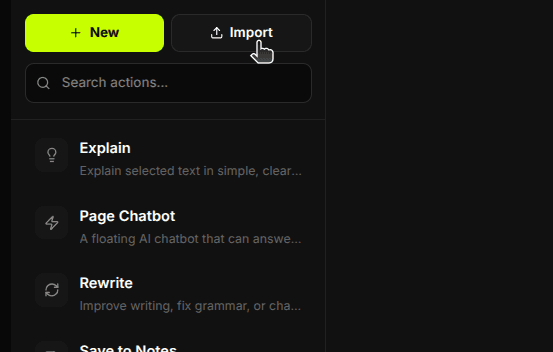
Open the Actions tab in the Dashboard, click the Import button, and select the JSON file from your computer. Tee will automatically parse and save it.
Creating a Custom Action
If you know a bit of JavaScript or TypeScript, you can build incredibly powerful automations directly in your browser.
- Create a New Action
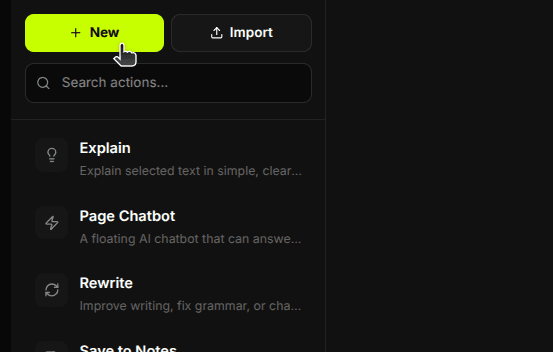
Click the + Create New button in the Actions tab. This creates a blank template for your new automation.
- Basic Details
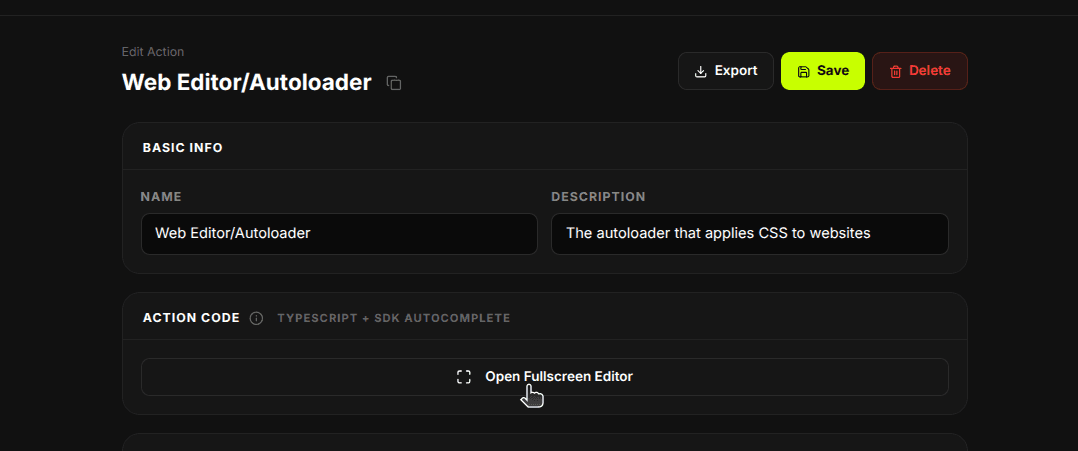
Give your action a memorable Name and a helpful Description so you remember what it does later.
- Write the Code
Click Open Fullscreen editor to open the built-in Monaco editor. Here, you define a single `execute` function. You can use our powerful SDKs to write actions, modify the page, or call APIs. For SDK documentation and examples, you can use the Docs tab in the editor.
- Configure Settings & Triggers
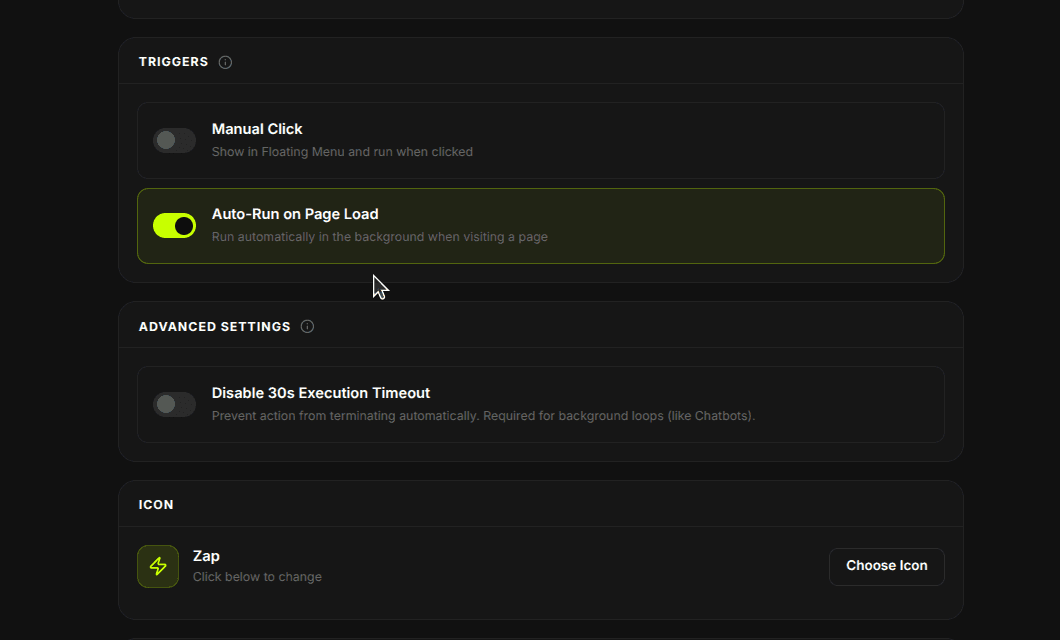
Scroll down to the settings area. Here you can configure exactly how and when your action runs:
- Triggers: Choose how your action starts: Manual Click from the menu, or Run on auto page load.
- Disable 30s Timeout: By default, actions timeout after 30 seconds. Toggle this setting if your automation needs more time to complete.
- Icon: Customize the icon for your action in your floating menu.
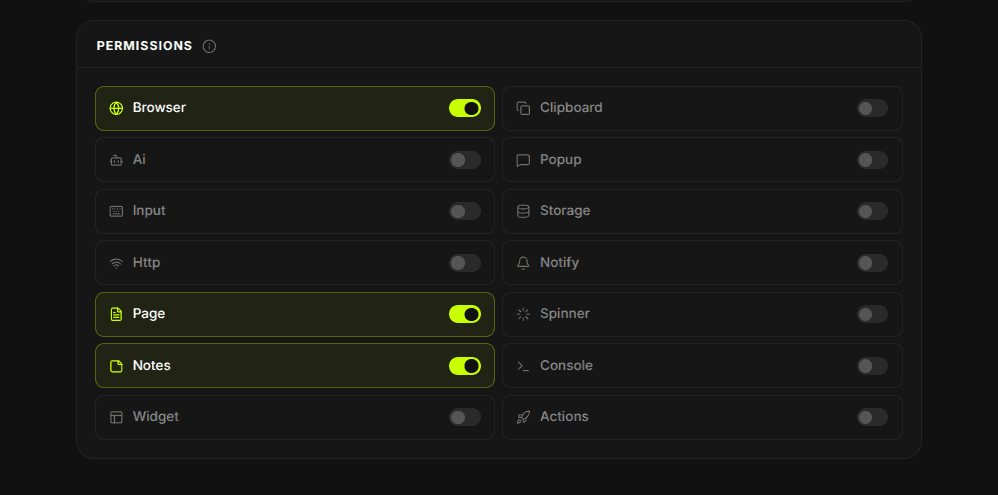
- Enable SDK Permissions
For security, actions run in a sandbox and can only access the APIs you explicitly allow. In the Permissions section, toggle the SDKs your code needs (e.g.,
AI,DOM,HTTP). If your action tries to use a disabled SDK, it will be blocked.