Getting Started
Welcome to Tee! Follow these steps to get your extension set up and ready to automate your browser.
- Setup the Extension
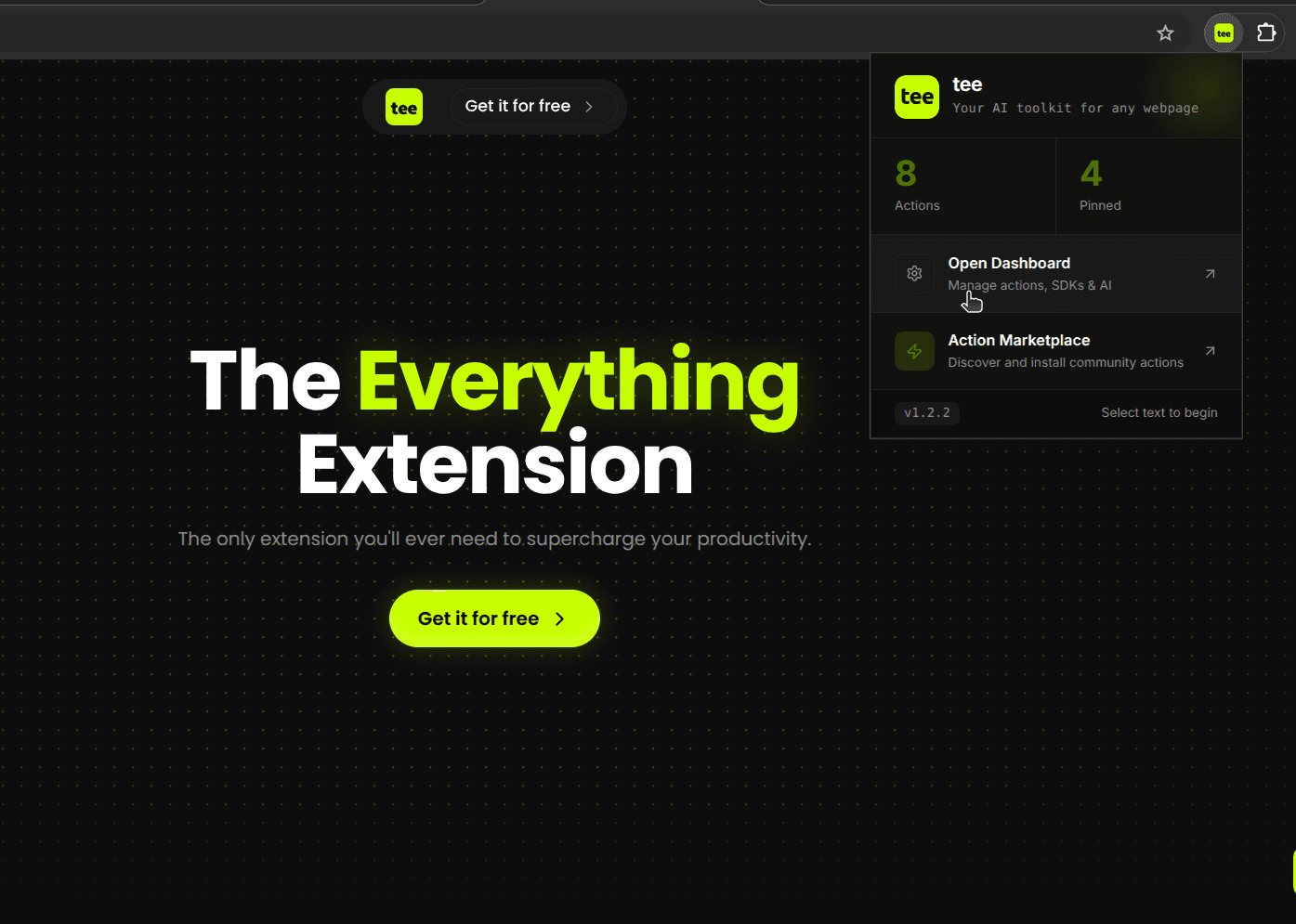
Once installed, click the Tee icon in your browser toolbar to open the Dashboard.
- Activate Your License
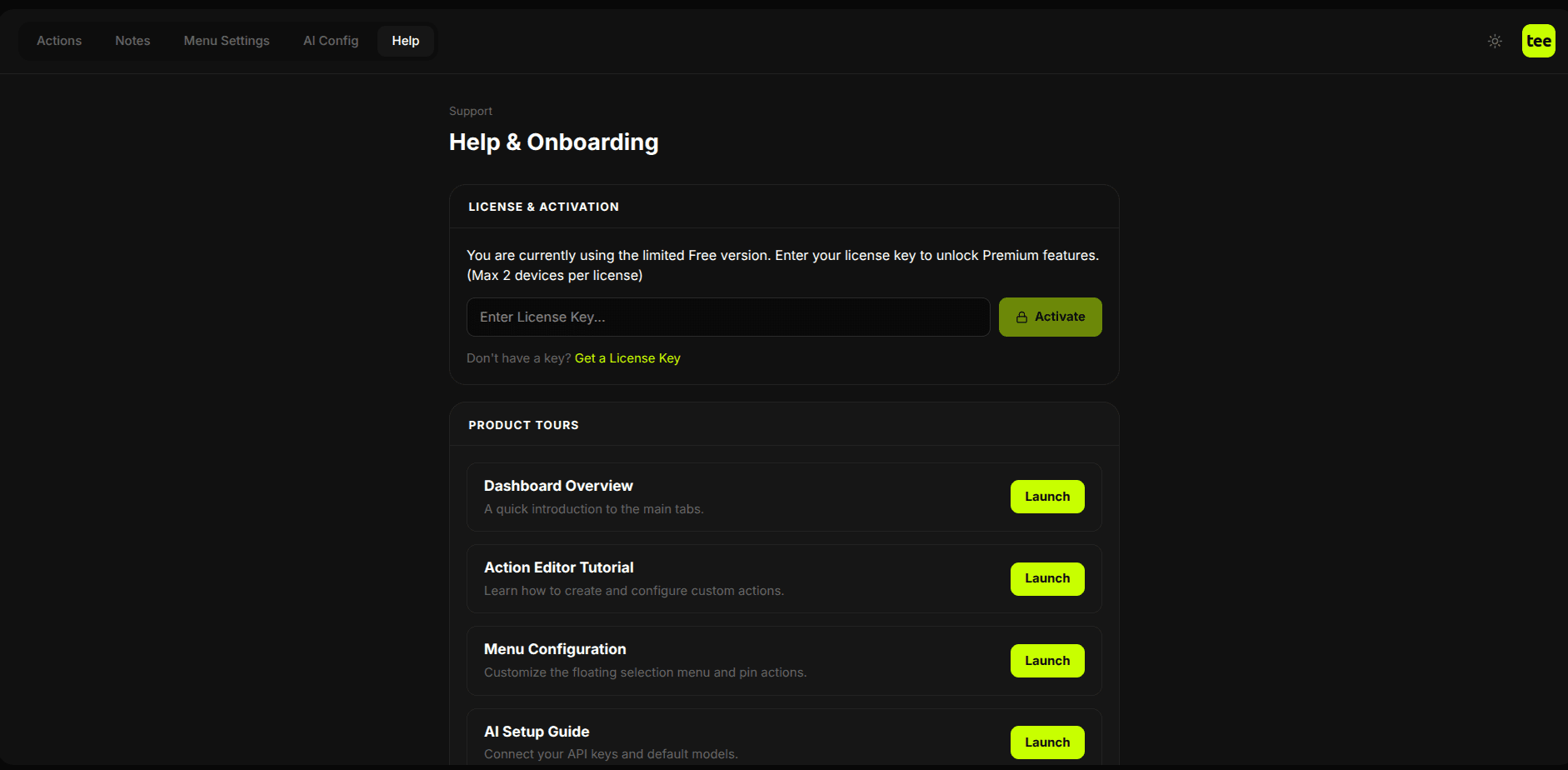
Navigate to the Help tab. Enter your license key to activate the extension if you have one, or just skip ahead if you're using the free version.
- Configure AI
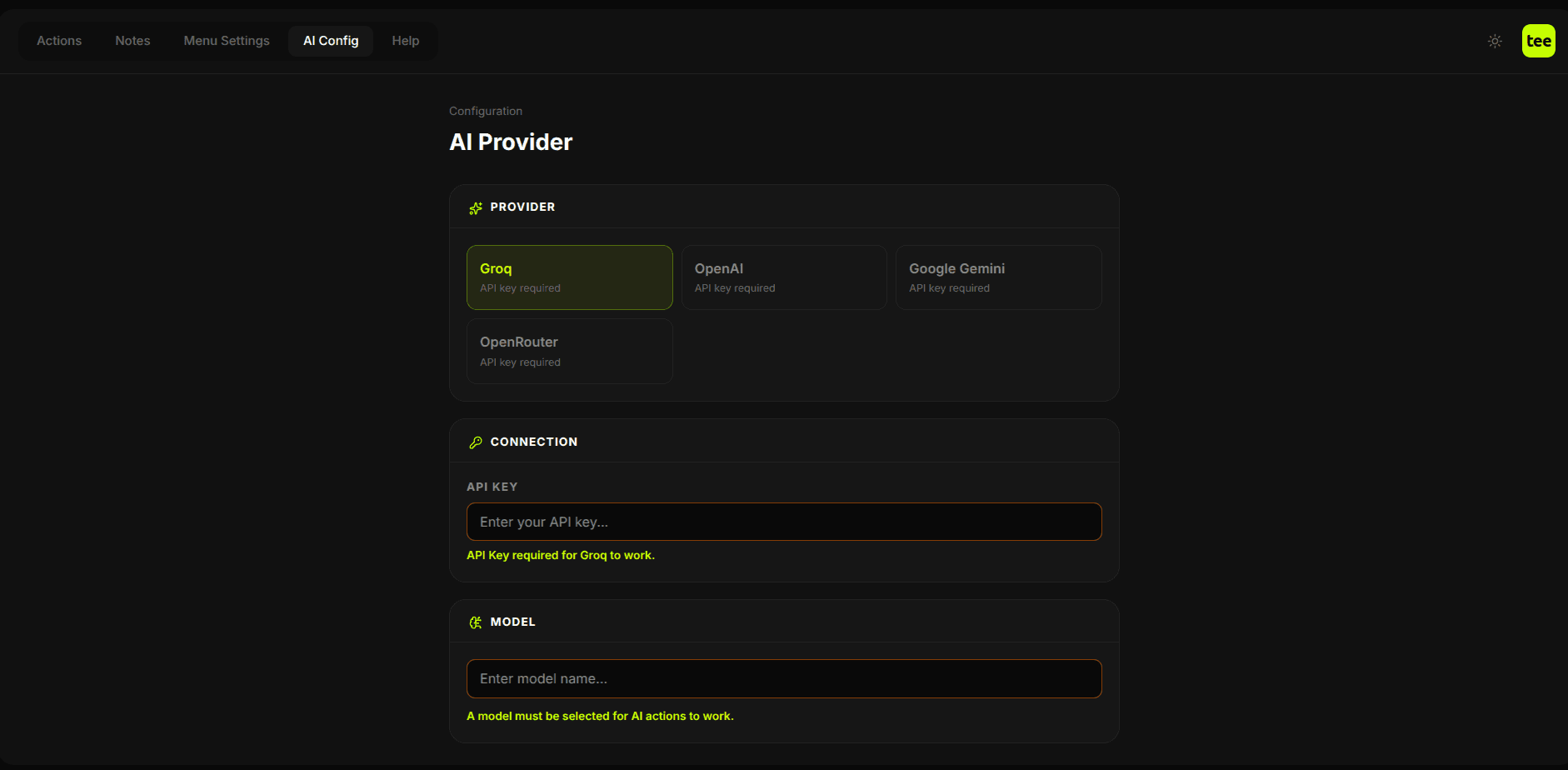
Navigate to the AI Config tab. Enter your API key and select your preferred AI model (OpenAI, Anthropic, or Groq). Your keys are stored locally and securely in your browser.
- Let Tee Do Its Magic
You're all set! Now select any text on any webpage, and the Tee menu will pop up. Click an action and let Tee do the magic.